
How to Customize a Receipt Layout Without Changing Your Purchase Data
Arrange printed fields clearly while preserving confirmed purchase amounts and original documents. See how the phone-field demonstration relates to the real editor.
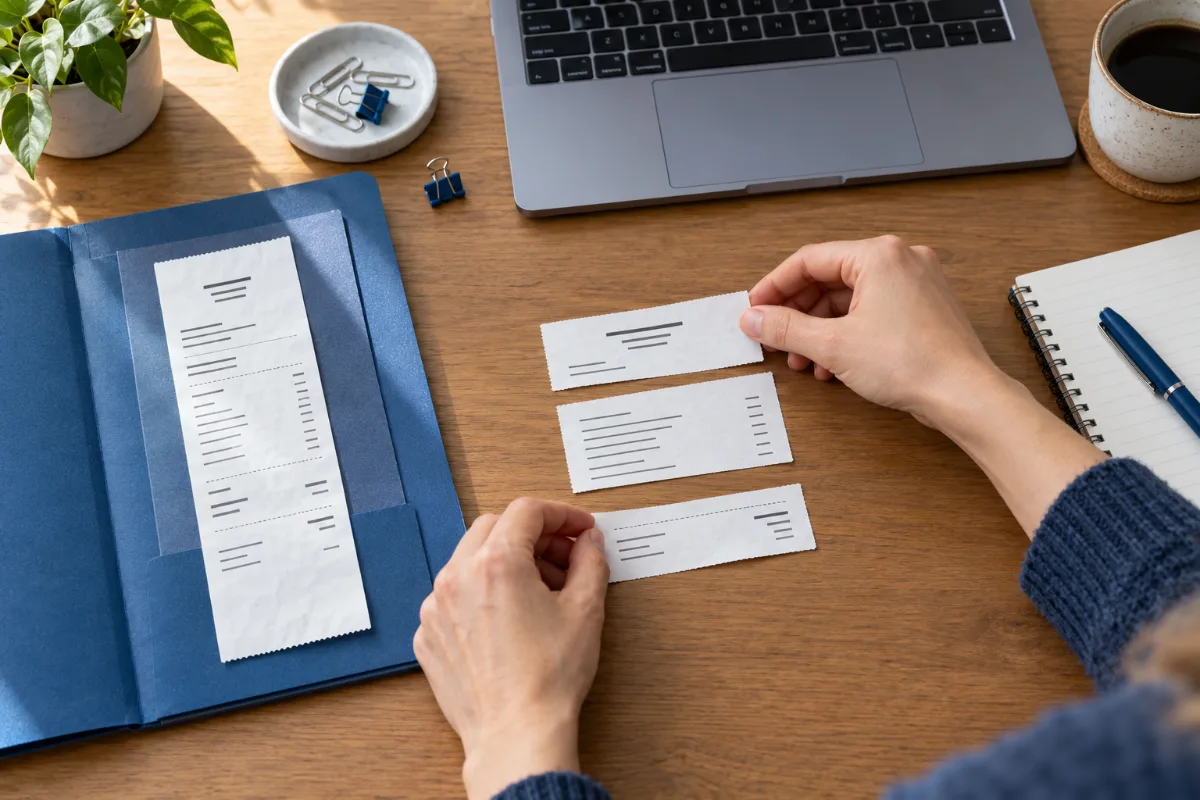
CLICK · MOVE · EDIT
Your layout, your way
Put the phone above the address, add an image, or change the text size. This animated example shows a field moving into place.
Try the editor ↗Pause animation
The demonstration is paused.
A clear receipt layout makes a purchase easier to read. You might want a phone number above the address, a longer item description on its own line, or a little more space around the total. Those are presentation choices. They should not change what was purchased or the amounts recorded for it.
This guide shows how to use CreateMyReceipt's layout controls while keeping the transaction data separate. The animated phone-field example demonstrates placement; it is not editing a real purchase.
Keep the original document first
If a receipt is lost, faded or damaged, look for the merchant's original in your email, order history or account, or ask the seller for a copy. Preserve any paper receipt, PDF, order confirmation and other supporting records you already have. Our receipt-document checklist explains how to keep a record traceable to its source.
When an original cannot be recovered, a personal record can help organize details you can confirm. Leave unknown facts blank. Editing a CMR layout does not make that record a merchant-issued original or guarantee acceptance by an employer, client or store.
Choose the right starting point
Open the receipt editor or choose a design from the published template gallery. For example, the 7-Eleven template provides an existing header and item arrangement to customize. Replace example details with the confirmed information for your own purchase before saving or exporting.
In the editor, use Receipt data for transaction fields and Layout & wording for printed presentation. A field can have custom printed text, so do not assume that every visible number is automatically linked to the underlying amount.
Move a phone field above an address
- Open Layout & wording and find the phone and address in Print order. If you cannot see an empty field, check Empty sections or enter its confirmed value in Receipt data.
- Select the phone section. Drag its handle onto the receipt preview to position it, or use the selected-section up/down arrows to change the order.
- Keep the phone on a separate row if it should sit above the address. Use Same row as only when you want fields beside one another; check that longer text does not collide.
- Adjust alignment, size, bold and the space above or below the section. Make one change at a time and review the preview.
- Use Undo to step back from a recent layout edit. Recheck the purchase fields after the layout is comfortable to read.
The automatic demonstration on this page repeats the movement so you can see the idea. Use its pause control if you prefer a still example. The actual editor uses your actions; watching the animation does not alter your receipt.
A before-and-after example with the same numbers
Imagine a personal record with two confirmed supply items at $12 each, a $24 subtotal, $2 tax and a $26 total. Before the layout edit, its address appears above the phone. Afterward, the phone appears first, the address is centered and there is more space before the items. Quantity remains two, each item remains $12, and the total remains $26. These are hypothetical amounts, not a merchant price or tax-rate recommendation.
If the preview instead contains custom text reading “Total $30,” changing that wording alone is not a transaction correction. Check the structured items and totals in Receipt data and reconcile them with your source. A tidy printout and an accurate numeric record need separate review.
Make the layout readable before printing
Use the paper width that matches your intended output. Check long business names, item descriptions and fields placed on the same row. Look for clipped text, overlapping values and unnecessary blank space. Fit width and Fit page help inspect the preview; they are viewing controls, not evidence that a physical printout will fit every printer.
Compare the final record with the original evidence: date, merchant, item quantities, prices, discounts, tax, tip and total. Keep source files unchanged and store your edited personal record separately. The CMR help guide covers save status and export workflows.
Export the checked data for useful comparisons
With applicable paid export access, CSV and Excel/XLSX let you organize reviewed structured amounts independently of the printed design. For a freelancer's supply purchases, use summary CSV to compare one row per receipt by date and merchant, or itemized CSV to review the supplies within each purchase. Do not add an item total and its receipt total as two expenses.
Review structured amounts before exporting. Reordering a phone field, changing a printed label or resizing text does not automatically change numeric export data. Keep the original documents alongside the CSV or workbook so the record remains understandable later.
Sources and review
CMR editor controls, help and pricing/export access reviewed October 19, 2026. Examples are editorial illustrations of record organization, not claims of merchant verification. Start with your confirmed purchase data, then make its presentation clear.